
High frequency recommended vocabulary

MBN 10284-2 is a standard of the German manufacturer whose component requirements carry the MBN prefix, and the part numbering indicates that the subject is treated in several documents, of which this is the second. In the practice of this manufacturer the components of a vehicle are grouped by system, and the electromagnetic requirement is written so that the applicable part can be selected from the position and function of the component rather than applied uniformly, which is why the standard is divided in this way. A supplier receives the part number in the engineering specification that accompanies the request for quotation, and the test programme is drawn up against that part together with the manufacturer's test method documents. The laboratory at which the tests are performed must be accepted by the manufacturer, and the report follows a prescribed format.
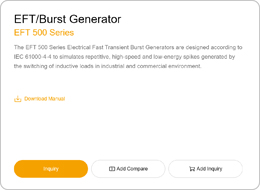
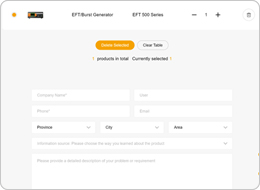
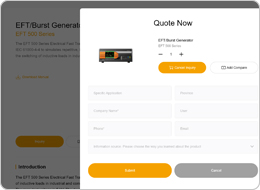
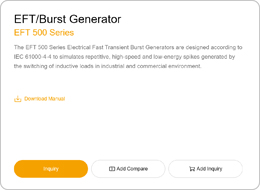
• Using the product inquiry function can help you quickly learn about the product's price and other related information.
• You can either inquire about a single product directly, or select multiple products to add to the inquiry bar and inquire about them together.
• How to make an inquiry
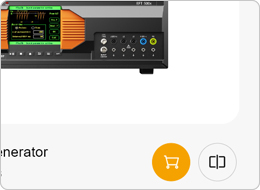

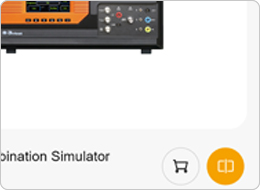
1. Using the product comparison function can help you find the target product you need for selection more quickly and easily.
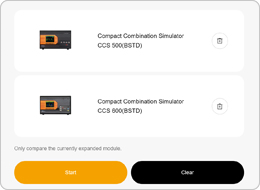
2. You can add up to 5 products for comparison. Product models and parameters may vary across different series. It is recommended to compare products within the same series.
3. How to use the comparison bar.

 Phone: +86-512-68413700
 Email: info@3ctest.cn
 Address:No.99 E'meishan Rd, SND, Suzhou, Jiangsu, 215153, China,Suzhou, Jiangsu, 215153, China



© 2025 Suzhou 3CTEST


 Leave a Message